
Find local jobs, apply faster, and manage your job search
✓ Apply to jobs in minutes
✓ Discover local opportunities in Denver
✓ Track your applications from one dashboard
✓ Connect directly with employers
Why Job Seekers Use RatedWork
✓ Built for local jobs in Denver
✓ Search jobs quickly with simple filters
✓ View company profiles before applying
✓ Manage applications and messages in one dashboard
✓ Find both long-term jobs and flexible work opportunities
How It Works
1. Create your account
Register as a candidate to access your dashboard, applications, and profile tools.
2. Complete your profile
Add your profile details and keep your account information updated so employers can learn more about you.
3. Search for jobs
Browse job listings by keyword, category, location, and job type to find opportunities that match your needs.
4. Apply to jobs
Submit your application directly through RatedWork and include your resume or information when required.
5. Track your applications
Check your application activity, review updates, and manage communication from your dashboard.
Getting Started
How do I create a Job Seeker account on RatedWork?
Creating a Job Seeker account allows you to:
✔ Apply for jobs
✔ Track applications
✔ Connect with employers
Follow these steps:
1. Click Register to create your account
Go to the RatedWork website and click Register from the right side of the Menu.
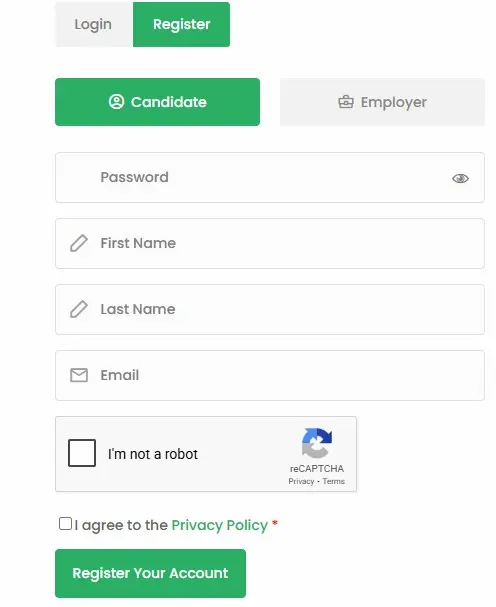
You will see the following screen:
2. Fill in your basic information
Fill in the required fields:
Password
Click the Eye Icon to Check your Password: 
RatedWork advise you to:
Use at least 8 characters, including one uppercase letter, one number, and one special symbol.
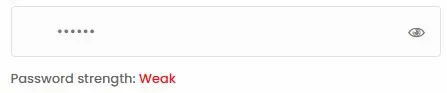
If your password is Weak you will see the following message:
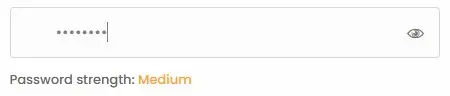
When the Password is strong but not enough you will see the following message:
When the password is strong enough you will see the following message:
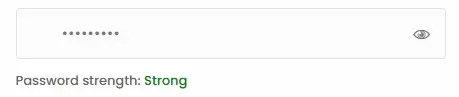
Then complete the following fields:
- Your First Name
- Your Last Name
- Email Address
3. Check reCAPTCHA Box
4. Accept the Privacy Policy
You can click on the green link: Privacy Policy to read the Privacy Policy.

Then check the box to accept the Privacy Policy.
5. Register your account
Click Register Your Account.
6. Access your Dashboard
After registration, you will be automatically logged in and redirected to your Dashboard.
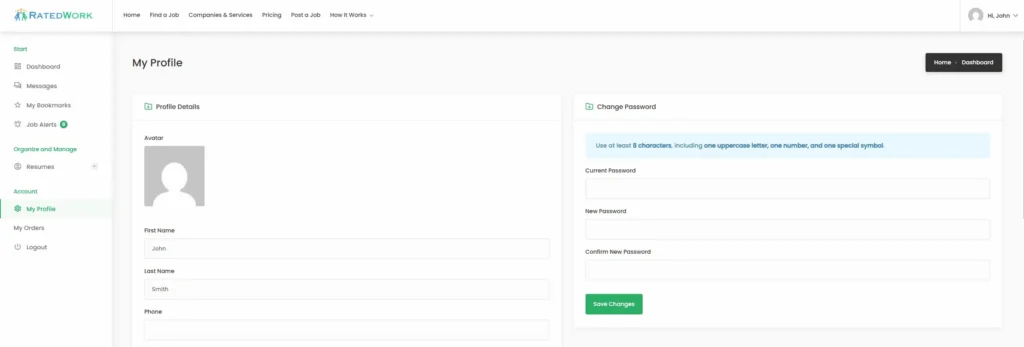
7. Complete your profile (recommended)
Click on the Picture under Profile Details. Right below the Avatar and choose picture from your computer.
Upload a profile picture and add basic information to make your profile more attractive to employers.
Important
Make sure you use a valid email address so you can receive job notifications and messages from employers.
Tip: A complete profile increases your chances of getting hired faster.
Click on Create Your Account to get started!
✔ Free to join
✔ Takes less than 2 minutes
✔ No credit card required
How do I log in to my account?
How do I log in to my account?
You can log in to your RatedWork account anytime to manage jobs and company details.
1. Open the login page
Go to the RatedWork website and click Login.
2. Enter your credentials
Fill in:
Username or Email
Password
3. Click Login
Click the Login button to access your account.
4. Access your Dashboard
After logging in, you will be redirected to your Dashboard where you can manage everything.
Important
Make sure your login details are correct. Passwords are case-sensitive.
Tip: Bookmark the login page for quicker access in the future.
What should I do if I forgot my password?
If you forgot your password, you can reset it quickly and regain access to your account.
1. Open the login page
Go to the RatedWork website and click Login.
2. Click “Lost your password?”
Below the login form, click the Lost your password? link.
3. Enter your account information
Provide your email address or username linked to your account.
4. Check your email
You will receive a password reset email with a link.
5. Create a new password
Click the link in the email and set your new password.
Important
If you don’t see the email, check your spam or junk folder.
Tip: Use a strong password with at least 8 characters, including a number and a special symbol.
What is the difference between Employer and Candidate accounts on RatedWork?
What is the difference between Employer and Candidate accounts on RatedWork?
RatedWork has two types of accounts so that Employers and Job Seekers can use the platform for different purposes.
1. Employer Account
An Employer account is for businesses or individuals who want to post jobs and hire workers.
With an Employer account you can:
Create and manage a company profile
Post job listings
Choose a job listing package
Receive applications from candidates
Review candidate profiles and resumes
Message candidates
Manage applications and hiring status
Employers use the platform to find workers and fill open positions.
2. Candidate Account
A Candidate account is for people who are looking for jobs or work opportunities.
With a Candidate account you can:
Create a personal profile or resume
Search and browse jobs
Apply to job listings
Send your resume and application
Message employers
Track your job applications
Candidates use the platform to find jobs and apply to employers.
Is creating an account on RatedWork free?
Yes, creating an account on RatedWork is completely free.
1. No registration fee
You can sign up and create your account without paying anything.
2. Access your dashboard for free
Once registered, you can log in and use your Dashboard to manage your profile and applications.
3. Apply to jobs at no cost
Job seekers can browse and apply to jobs without any fees.
Important
Some platform features (such as job posting packages for employers) may require payment, but creating an account itself is always free.
Tip: Create your account and complete your profile to start applying for jobs immediately.
Profile & Resume
How do I create my candidate profile?
Creating your candidate profile helps employers learn more about you and increases your chances of getting hired.
1. Open your Dashboard
Log in to your RatedWork account and go to your Dashboard.
2. Go to your profile section
From the menu, open your My Profile page.
3. Add your personal information
Fill in details such as:
Full name
Location
Contact information
4. Add your skills and experience
Include your work experience, skills, and any relevant qualifications.
5. Upload your resume (if available)
(Optional) Upload your resume to provide more details to employers.
6. Save your profile
After completing your information, click Save Changes.
Important
Incomplete profiles may receive fewer job opportunities from employers.
Tip: A complete and detailed profile makes you more attractive to employers and increases your chances of getting hired.
How do I upload my resume?
Uploading your resume helps employers review your experience and increases your chances of getting hired.
1. Open your Dashboard
Log in to your RatedWork account and go to your Dashboard.
2. Go to your profile section
From the menu, open your My Profile page.
3. Locate the resume upload field
Scroll to the section where you can upload your resume file.
4. Upload your resume
Click Upload and select your resume file from your device.
5. Save your changes
After uploading your resume, click Save Changes to update your profile.
Important
Make sure your resume is up to date and clearly shows your experience and skills.
Tip: Use a simple and professional format so employers can quickly review your qualifications.
Can I apply to jobs without uploading a resume?
Yes, you can apply to jobs without uploading a resume, but having one can improve your chances of getting hired.
1. Browse available jobs
Go to the job listings page and find a job you are interested in.
2. Open the job listing
Click on the job to view full details and requirements.
3. Submit your application
Click Apply and complete the application form.
4. Apply without a resume (if allowed)
If the job does not require a resume, you can submit your application without uploading one.
Important
Some employers may require a resume, and you may not be able to apply without it.
Tip: Uploading a resume helps employers better understand your experience and increases your chances of being selected.
How can I edit my profile information later?
You can update your profile information anytime from your Dashboard.
1. Open your Dashboard
Log in to your RatedWork account and go to your Dashboard.
2. Go to your profile section
From the menu, open your My Profile page.
3. Edit your information
Update any details such as:
Personal information
Skills and experience
Contact details
Resume (if needed)
4. Save your changes
After making updates, click Save Changes.
Important
Your profile must be saved after changes, otherwise updates will not be applied.
Tip: Keep your profile up to date to improve your chances of being noticed by employers.
What information should I include in my profile to get more responses?
A complete and detailed profile helps employers understand your skills and increases your chances of getting more responses.
1. Add your basic information
Include your full name, location, and contact details so employers know who you are and how to reach you.
2. Write a clear profile description
Explain what type of work you are looking for and what you can offer.
3. List your skills
Add relevant skills related to the jobs you want to apply for.
4. Include your work experience
Describe your previous jobs, responsibilities, and any relevant experience.
5. Upload your resume
Provide a resume with more detailed information about your background.
6. Add availability or schedule
Mention if you are available full-time, part-time, or for one-time jobs.
Important
Incomplete profiles may receive fewer responses from employers.
Tip: Be clear, honest, and specific about your experience to attract the right opportunities.
Finding Jobs
How do I search for jobs on RatedWork?
You can search for jobs using filters and keywords to find opportunities that match your skills and location.
1. Go to the Browse Jobs page
Open the RatedWork website and click Browse Jobs.
2. Enter keywords (optional)
Use the search bar to enter keywords such as job title, service, or skill.
3. Select your location
Choose your city or area to find jobs near you.
4. Apply filters
Use available filters to narrow results, such as:
Job category
Job type
Keywords
5. Browse job listings
Scroll through the results and click on a job to view full details.
Important
Make sure your location and filters are correct, otherwise you may not see relevant jobs.
Tip: Try different keywords and filters to discover more job opportunities.
How can I filter jobs by location or category?
You can use the search filters on the Browse Jobs page to narrow results by location or category.
1. Go to the Browse Jobs page
Open the RatedWork website and click Browse Jobs.
2. Enter a location
Use the location field to select your city or area to find jobs near you.
3. Select a category
Choose a job category that matches the type of work you are looking for.
4. Apply the filters
Click Search or apply the filters to update the job results.
5. Review filtered results
Browse the updated listings that match your selected location and category.
Important
If filters are too specific, you may see fewer results.
Tip: Try adjusting your location or category to discover more job opportunities.
What types of jobs are available on RatedWork?
RatedWork focuses on local job listings, including short-term and regular jobs posted by employers in your area.
1. Day Job Listings (short-term jobs)
These are quick or urgent jobs that usually last a short time.
Examples:
Cleaning jobs
Moving help
Yard work
One-day or same-day jobs
These jobs are typically posted using the Day Job Listing (24 hours) option.
2. Standard job listings (regular jobs)
These are ongoing jobs that may last for multiple days or weeks.
Examples:
Part-time jobs
Full-time jobs
Ongoing service work
These jobs are posted using the Standard Listing (20 days) option.
3. Featured job listings (high visibility jobs)
These are jobs that employers want to promote for more exposure.
Examples:
Urgent hiring
Hard-to-fill positions
High-priority roles
These jobs are posted using the Featured Listing (30 days) option.
4. Local service-based jobs
Most jobs on RatedWork are based on local services and practical work.
Examples:
House cleaning
Car detailing
Handyman services
Delivery or general labor
Job boards typically allow employers to post roles across different industries and locations, helping job seekers find opportunities based on their skills and area.
Important
RatedWork does not use a separate “Tasks” section — short-term jobs are handled through Day Job Listings.
Tip: If you are looking for quick work, check listings marked as Day Job for faster opportunities.
Can I find same-day or urgent jobs?
Yes, you can find same-day or urgent jobs on RatedWork, depending on what employers are currently posting.
1. Go to the Browse Jobs page
Open the RatedWork website and click Browse Jobs.
2. Look for Day Job listings
Check for jobs labeled as Day Job Listing — these are usually short-term or urgent jobs that need to be filled quickly.
3. Use keywords
Search using terms like:
“today”
“urgent”
“immediate”
This can help you find jobs that need workers right away.
4. Check job details
Open the job listing and review:
Start date
Job duration
Employer notes
Some employers will clearly mention if the job is urgent or same-day.
5. Apply quickly
Same-day or urgent jobs are often filled fast, so apply as soon as possible.
Important
Same-day jobs depend on employer demand — they are not always available, and availability may change daily.
Urgent roles are typically posted when employers need to fill positions quickly due to immediate business needs.
Tip: Check the platform frequently and apply early to increase your chances of getting selected for urgent jobs.
How can I see the newest job listings?
You can see the newest job listings by checking the Browse Jobs page where the latest jobs appear first.
1. Go to the Browse Jobs page
Open the RatedWork website and click Find a Job.
2. View the job listings
Jobs are displayed directly on the page, with the most recent listings typically shown at the top.
3. Scroll through the listings
Scroll down to explore more available jobs in your area.
4. Refresh the page
Reload the page to see newly posted jobs as they become available.
Important
RatedWork does not rely on a separate “sort by newest” button — new jobs are automatically shown in the main list.
Tip: Check the page multiple times a day to catch new job postings early, especially Day Job listings.
Applying to Jobs
How do I apply for a job?
You can apply for a job directly from the job listing page in just a few steps.
1. Go to the Find a Job page
Open the RatedWork website and click Find a Job.
2. Open a job listing
Click on a job to view full details, requirements, and application options.
3. Click Apply for Job
On the job page, click the Apply for Job button.
4. Complete the application
Fill in the required information and upload your resume if needed.
5. Submit your application
Click Submit Application to send your application to the employer.
Important
Some jobs may require a resume or specific details before you can apply.
Tip: Apply as soon as possible — early applications have a better chance of being seen by employers.
What happens after I submit an application?
After you submit an application, your information is sent directly to the employer for review.
1. Your application is submitted
Your application is delivered to the employer who posted the job.
2. The employer reviews your application
The employer can view your:
Profile
Resume (if provided)
Application details
3. Your application is tracked
Your application is saved in your account so you can keep track of it.
4. The employer may contact you
If the employer is interested, they may:
Send you a message
Contact you using your provided details
5. Status may be updated
The employer can update your application status (for example: New, Interviewed, Hired).
Important
Submitting an application does not guarantee a response — employers decide who to contact.
Tip: Apply to multiple jobs and keep your profile updated to increase your chances of getting hired.
Can I apply to multiple jobs at the same time?
Yes, you can apply to multiple jobs on RatedWork without any limit.
1. Go to the Find a Job page
Open the RatedWork website and click Find a Job.
2. Browse available jobs
Scroll through the listings and open jobs that match your skills.
3. Apply to each job
Click Apply for Job on each job you are interested in.
4. Submit your applications
Complete and submit your application for each job separately.
Important
Each job requires a separate application — applying to one job does not apply you to others.
Tip: Applying to multiple relevant jobs increases your chances of getting hired faster.
Can employers see my profile before I apply?
Employers may be able to see your profile if it is visible in the candidate directory.
1. Candidate profiles may be searchable
RatedWork includes a Browse Candidates feature where employers can explore available candidates.
2. Your profile may appear in the directory
If your profile or resume is completed, it may be visible to employers searching for candidates.
3. Employers can view your information
Employers may be able to see:
Your profile details
Skills and experience
Resume (if uploaded)
4. Applying increases visibility
When you apply to a job, your profile is directly shared with that employer.
Important
Profile visibility may depend on your profile settings and platform configuration.
Tip: Keep your profile complete and professional — employers may find you even before you apply.
How will I know if an employer responded to my application?
You will be notified when an employer responds to your application.
1. Check your email
If an employer contacts you, you will receive an email notification at the address linked to your account.
2. Check your Dashboard
Log in to your RatedWork account and go to your Dashboard to view updates.
3. Open your messages or applications
If messaging is used, you can see conversations or updates related to your application.
4. Monitor your application status
Employers may update your status (for example: New, Interviewed, Hired).
Important
Make sure your email address is correct and check your spam or junk folder if you don’t see notifications.
Tip: Log in regularly to your account so you don’t miss messages or updates from employers.
Messaging & Communication
How can I contact an employer?
You can contact an employer after applying for a job or if they provide contact details in the job listing.
1. Open a job listing
Go to the Find a Job page and open a job you are interested in.
2. Check the job details
Review the job description to see if the employer has provided contact information.
3. Apply for the job
Click Apply for Job and submit your application.
4. Wait for employer response
After applying, the employer may contact you directly through:
Platform messages
Your provided contact details
Important
Not all employers provide direct contact information — applying is the main way to connect with them.
Tip: Submit a complete application to increase your chances of getting a response from the employer.
How does the messaging system work?
The messaging system allows you and employers to communicate directly after an application is submitted.
1. Apply for a job
Messaging becomes available after you apply for a job.
2. Employer initiates or replies
The employer can start a conversation or respond to your application.
3. Receive a notification
You will receive an email notification when a new message is sent.
4. Open your Dashboard
Log in to your RatedWork account and go to your Dashboard.
5. View and reply to messages
Open your messages and reply directly from the platform.
Important
Messaging is typically available only after an application is submitted to keep communication relevant and organized.
Tip: Check your messages regularly and respond quickly to increase your chances of getting hired.
Will I receive email notifications for messages?
Yes, you will receive email notifications when you get a new message from an employer.
1. Receive a notification
When an employer sends you a message, a notification is sent to your registered email address.
2. Check your email
Open your inbox to see the message notification.
3. Open your Dashboard
Log in to your RatedWork account.
4. View your messages
Go to your Dashboard and open your messages to read and reply.
Important
If you do not see the email, check your spam or junk folder.
Tip: Keep your email notifications enabled and check your inbox regularly so you don’t miss important messages.
Can I reply directly from my email?
No, you cannot reply to messages directly from your email.
1. Receive the email notification
When you get a new message, you will receive an email notification.
2. Open your Dashboard
Click the link in the email or go to the RatedWork website and log in.
3. Go to your messages
Open your Dashboard and navigate to your messages.
4. Reply through the platform
Type your response and send your message from inside your account.
Important
Email notifications are for alerts only — replies must be sent through the RatedWork platform.
Tip: Always reply through your Dashboard to keep all communication organized in one place.
Managing Applications
Where can I see the jobs I applied to?
You can view all the jobs you have applied to from your Dashboard.
1. Open your Dashboard
Log in to your RatedWork account and go to your Dashboard.
2. Go to your applications
Navigate to the section where your job applications are listed.
3. View your applied jobs
You will see a list of all jobs you have applied to.
4. Open a job application
Click on a job to view more details or check updates.
Important
Only jobs you have applied to will appear in this section.
Tip: Check your applications regularly to track updates and employer responses.
How can I track the status of my applications?
You can track your application status from your Dashboard after applying to jobs.
1. Open your Dashboard
Log in to your RatedWork account and go to your Dashboard.
2. Go to your applications
Navigate to the section where your applied jobs are listed.
3. View application status
Each application may show a status such as:
New
Interviewed
Hired
Rejected
4. Open application details
Click on a job to view more information and any updates from the employer.
Important
Application status updates depend on the employer — not all employers update statuses.
Tip: Check your Dashboard regularly and monitor your messages for updates.
Can I withdraw my job application?
Withdrawing an application may not be available as a direct option on the platform.
1. Open your Dashboard
Log in to your RatedWork account and go to your Dashboard.
2. Go to your applications
Navigate to the section where your applied jobs are listed.
3. Check for available options
Open the application and see if a Withdraw option is available.
4. Contact the employer (if needed)
If there is no withdraw option, you can send a message to the employer to inform them.
Important
Not all applications can be withdrawn directly — this depends on how the platform is configured.
Tip: If you are no longer interested, notify the employer as soon as possible to keep communication professional.
Company Information
How can I view company profiles before applying?
You can view company profiles directly from job listings before applying.
1. Go to the Find a Job page
Open the RatedWork website and click Find a Job.
2. Open a job listing
Click on a job to view full details.
3. Click on the company name
On the job page, click the company name to open the company profile.
4. Review the company profile
You can view:
Company description
Services offered
Location
Other company details
Important
Not all companies may have complete profiles, depending on what information they provided.
Tip: Reviewing the company profile helps you understand who you are applying to and make better decisions.
What does the "Verified Company" badge mean?
The “Verified Company” badge shows that a company has been reviewed and approved by the RatedWork team.
1. Company submits their profile
A business creates a company profile on RatedWork.
2. Profile is reviewed
The RatedWork team reviews the company information.
3. Verification is approved
If the company meets the platform requirements, it receives a Verified Company badge.
4. Badge is displayed publicly
The badge appears on the company profile and listings.
Important
The Verified badge helps indicate that a company is more trustworthy, but users should still review job details carefully.
Tip: Look for Verified companies when applying to increase confidence in the employer.
Can I see reviews about companies?
Yes, you can see reviews on company profiles if they are available.
1. Go to the Find a Job page
Open the RatedWork website and click Find a Job.
2. Open a job listing
Click on a job to view full details.
3. Open the company profile
Click on the company name to access the company profile.
4. Check for reviews
If reviews are available, they will be displayed on the company profile.
Important
Not all companies may have reviews yet, especially new profiles.
Tip: Reviews can help you better understand a company before applying.
Safety & Trust
How can I tell if a job listing is legitimate?
You can evaluate a job listing by checking the details, company profile, and overall quality of the posting.
1. Review the job details
Look for clear and complete information such as:
Job title
Description
Responsibilities
Location
2. Check the company profile
Click on the company name and review:
Company description
Services
Contact details
Verified badge (if available)
3. Look for realistic information
Legitimate jobs usually:
Clearly explain the work
Provide reasonable pay expectations
Do not make unrealistic promises
4. Avoid suspicious listings
Be cautious if the job:
Is very vague
Promises high pay for little work
Requests sensitive personal information upfront
Important
Never share sensitive information (such as bank details or personal documents) unless you are sure the employer is legitimate.
Tip: If something feels unclear or too good to be true, take time to review the company profile before applying.
What should I do if I see a suspicious job posting?
If you notice a job that looks suspicious, you should avoid applying and report it to keep the platform safe.
1. Do not apply to the job
Avoid submitting your application if the job seems unclear or unsafe.
2. Do not share personal information
Do not provide sensitive details such as:
Bank information
Social Security number
Copies of personal documents
3. Review the company profile
Check the company details to see if the listing appears legitimate.
4. Report the job listing
Use the available contact or support option on RatedWork to report the suspicious job.
5. Wait for review
The RatedWork team can review and take action if needed.
Important
Your safety comes first — never share sensitive information unless you trust the employer.
Tip: If something feels wrong or too good to be true, it’s best to avoid the job and report it.
Does RatedWork guarantee employment?
No, RatedWork does not guarantee employment.
1. Platform connects job seekers and employers
RatedWork provides a platform where employers post jobs and job seekers can apply.
2. You apply to available jobs
You submit applications to jobs that match your skills and experience.
3. Employers review applications
Each employer decides which candidates to contact or hire.
4. Hiring decisions are made by employers
The final decision depends on the employer’s needs and selection process.
Important
RatedWork does not guarantee job placement, interviews, or hiring — it only helps connect job seekers with employers.
Tip: Apply to multiple jobs and keep your profile strong to improve your chances of getting hired.
Using RatedWork Effectively
How can I improve my chances of getting hired?
You can increase your chances of getting hired by having a strong profile and applying strategically.
1. Complete your profile
Make sure your profile includes:
Basic information
Skills
Work experience
Resume (if available)
2. Apply to relevant jobs
Focus on jobs that match your skills and experience.
3. Apply early
New jobs receive attention quickly, so applying early can improve your chances.
4. Write clear applications
Provide accurate and clear information when applying.
5. Stay active on the platform
Check for new jobs regularly and respond quickly to messages from employers.
Important
Employers choose candidates based on relevance, experience, and responsiveness.
Tip: A complete profile and fast response time can significantly increase your chances of getting hired.
How often should I check for new job listings?
You should check for new job listings regularly to increase your chances of finding opportunities early.
1. Check daily
Visit the Find a Job page at least once a day to see newly posted jobs.
2. Check multiple times for urgent jobs
If you are looking for quick work, check several times a day for Day Job listings.
3. Refresh the page
Reload the page to view the latest jobs as they are posted.
4. Stay consistent
Regularly checking helps you catch new opportunities before other applicants.
Important
New jobs can be filled quickly, especially short-term or urgent listings.
Tip: The earlier you apply, the better your chances of being noticed by employers.
Can I receive notifications for new jobs?
Yes, you may receive notifications about new jobs, depending on how the platform is configured.
1. New jobs are posted regularly
Employers add new job listings to the platform throughout the day.
2. Email notifications may be sent
Some platforms send email alerts when new jobs are posted or when activity matches your profile.
3. Check your email
If notifications are enabled, you will receive updates in your registered email inbox.
4. Check the platform regularly
You can always go to the Find a Job page to see the latest listings.
Important
Job notifications depend on platform features — if alerts are not enabled, you will need to check the site manually.
Tip: Even if notifications are available, checking the platform daily helps you apply faster and increases your chances of getting hired.
Account & Support
How can I change my account email or password?
You can update your account email or password from your Dashboard settings.
1. Open your Dashboard
Log in to your RatedWork account and go to your Dashboard.
2. Go to Account Settings
Navigate to your account or profile settings section.
3. Update your email or password
Enter your new email address or create a new password.
4. Confirm your changes
Make sure all fields are correct and completed.
5. Save your changes
Click Save Changes to apply the updates.
Important
Make sure your new email address is valid so you can continue receiving notifications.
Tip: Use a strong password with at least 8 characters, including a number and a special symbol for better security.
How can I delete my account?
To delete your account, you need to contact the RatedWork support team.
1. Open your Dashboard
Log in to your RatedWork account.
2. Prepare your request
Make sure you include:
Your username
Your registered email address
3. Contact support
Reach out to the RatedWork support team and request account deletion.
4. Wait for confirmation
The support team will process your request and confirm once your account is deleted.
Important
There is no direct option to delete your account from the Dashboard — all deletion requests must be handled by support.
Tip: Make sure you no longer need your account, as deletion may permanently remove your data, applications, and messages.
Who can I contact if I need help?
If you need help, you can contact the RatedWork support team through the Contact page.
1. Go to the Contact page
Open the RatedWork website and click Contact.
2. Fill out the contact form
Enter:
Your name
Your email
Your message
3. Send your request
Submit the form with your question or issue.
4. Contact via email (optional)
You can also email support directly at:
[email protected]
5. Call support (optional)
You can contact RatedWork by phone:
(720) 446-6889
Important
Provide clear details about your issue so the support team can assist you faster.
Tip: Include your account email or username in your message to speed up support response.